IMPORTANT
This procedure must be performed by someone with local administrator privileges who can install and uninstall software.
1. Back Up the Player Configuration
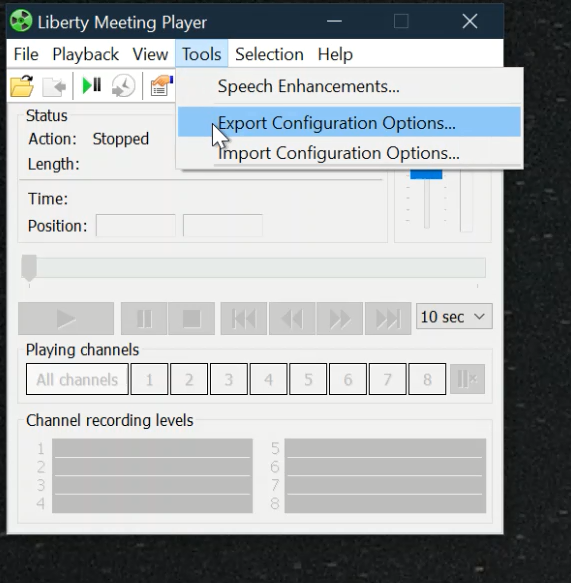
For the full procedure, see Liberty Meeting Recorder & Player – Backing up and Restoring Configuration.
2. Uninstall the Current Version
From Control Panel, uninstall Liberty Meeting Recorder System.
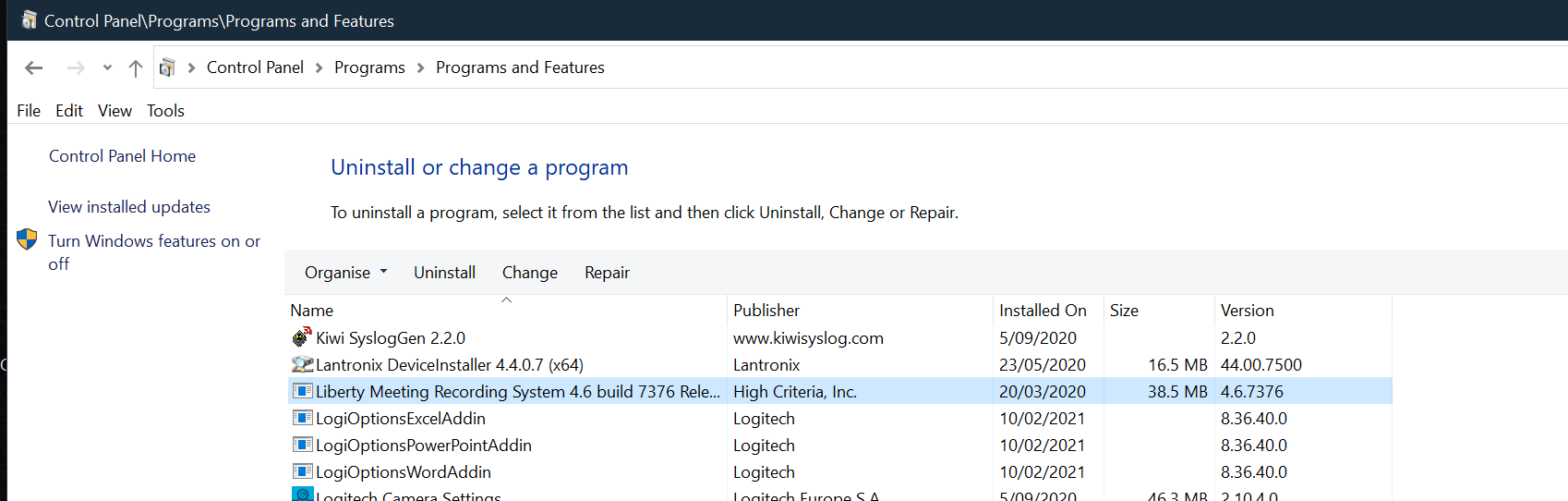
3. Install the New Version
- Start the installation package for your operating system (32-bit or 64-bit).
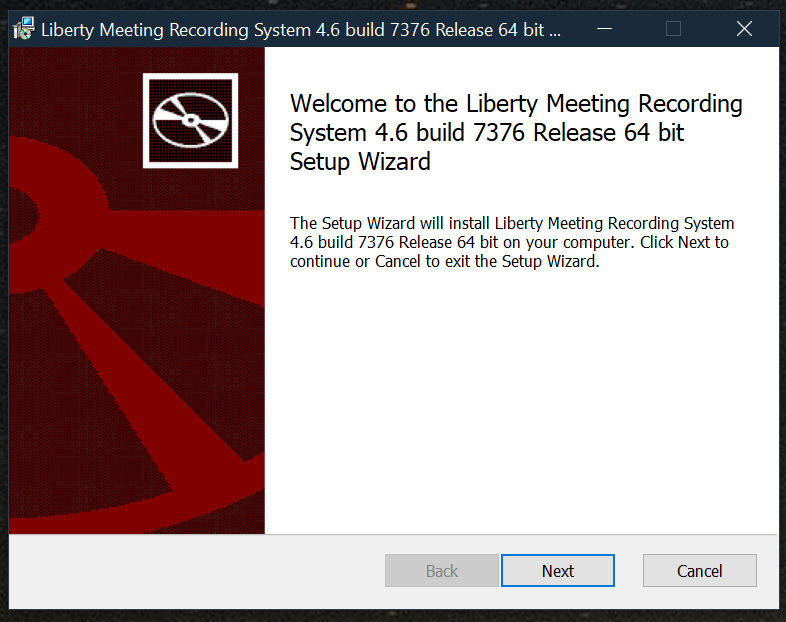
- Click Next and accept the terms and conditions, then click Next.
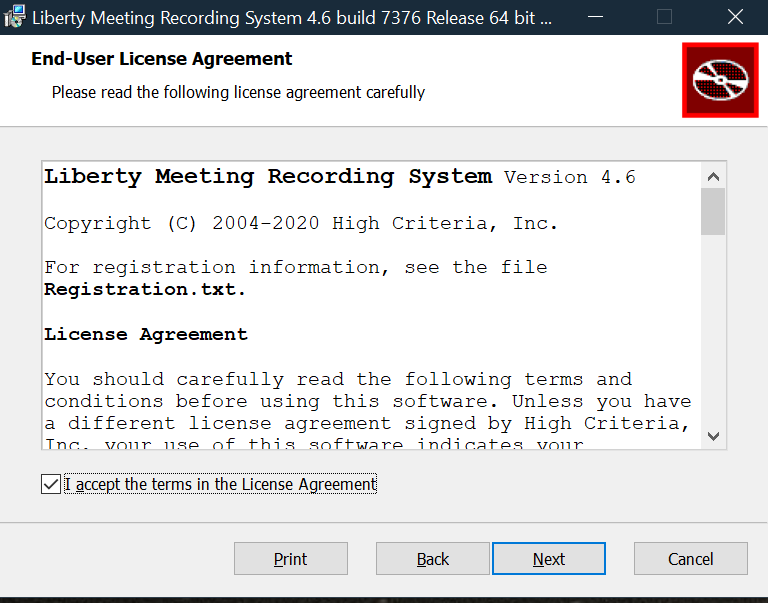
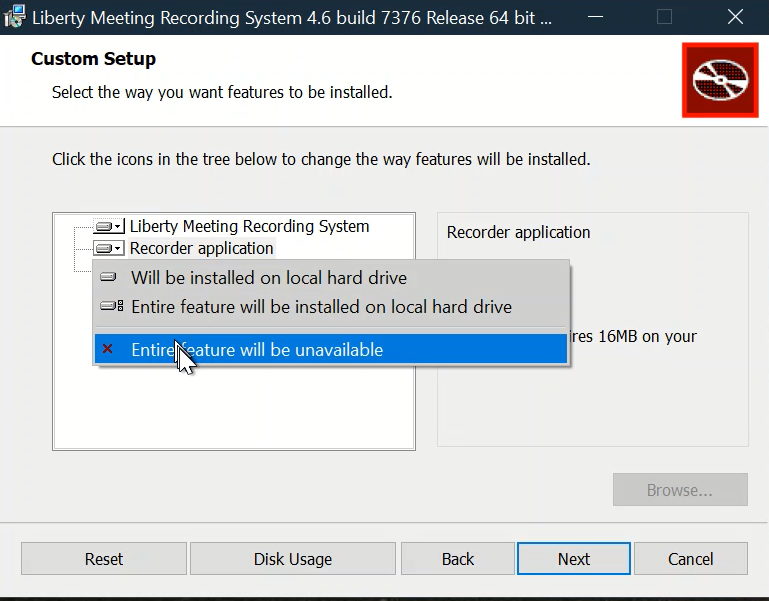
- Deselect the recording application as shown below. The recorder is a licensed component, registered with a key installed on the computer that does the recording.
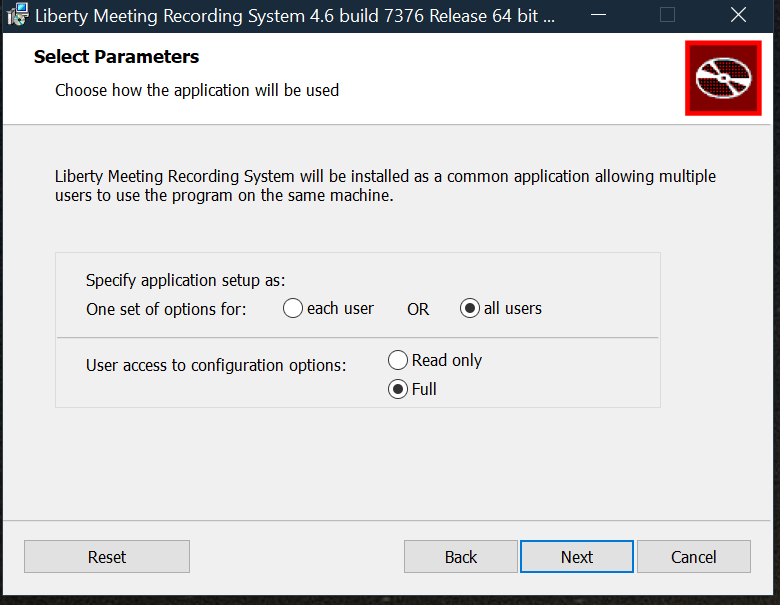
- Click Next, then select All Users and Full.
- Click Next, then Install.
- Approve the installation when prompted. Administrator credentials may be requested, depending on your computer configuration. If asked, close any applications running in the background, such as Word or Outlook.
- When the installation completes, click Finish and restart the computer if required.
4. After Restarting
<Insert Instructions>
Faults or questions – raise a support ticket with Redfish Technologies.
Was this article helpful?
That’s Great!
Thank you for your feedback
Sorry! We couldn't be helpful
Thank you for your feedback
Feedback sent
We appreciate your effort and will try to fix the article